


By default, all applications are shown on the graphs but you can choose to show traffic for specific applications only.
The list of applications in the context menus is a complete list of applications monitored by TrafficInsights. The list isn’t filtered to remove applications not detected on your client devices. You can always add a custom application if you don’t see one applicable to what you’d like to view traffic for.
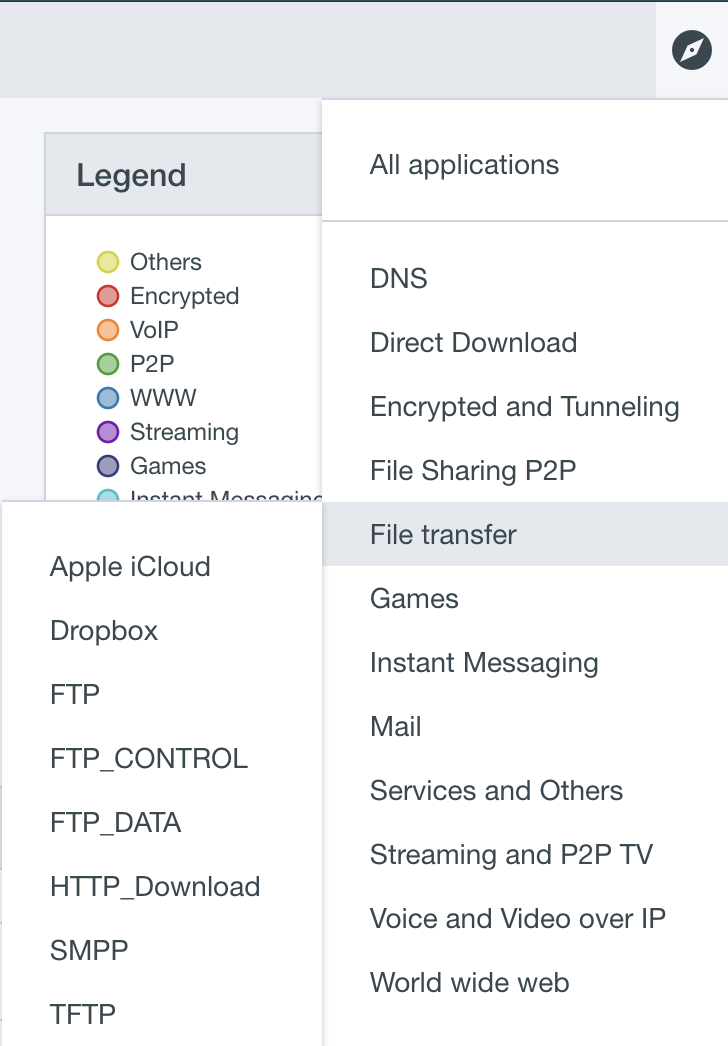
From the top navigation bar, click the compass icon ( ). From the context menu, hover over the appropriate group to reveal a secondary context menu.
From the secondary context menu, click an application. If there’s traffic data available for the selected application, the graphs will update. Otherwise, you’ll see a No data message.
To clear the application, click the X next to the set application (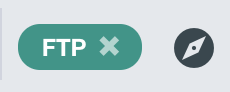 ) in the top navigation bar, or click the compass icon () and select All Applications.